-1.png?width=685&height=220&name=empowerrd-logo-dark-light%20blue@4x%20(1)-1.png)
How do I add a team member?
To add a team member, you will need to invite them as a new user. To do this, you will need to go to your dashboard on the EmpowerRD platform. From there, you will need to click on 'Manage Claim Team':
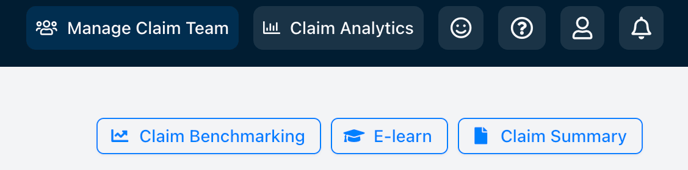
From there, it show show you 'Claim Team Management'; this is where you can add new users, update existing users' roles and their details (if you have an admin role).
To add a new user, click on 'Add Team Member':

You should then be taken to this page to add a new user:

As shown above, you will need to provide their full name, email address, job title and mobile phone number. These details are held securely, and are only used for the management of the claim and for our 2FA secure log in process.
Once you have added these details, you will need to select a role for them. You can choose from the following options:
- Coordinator: This user can create and view financial and business info, as well as project information, and can add all kinds of users. It is an admin role.
- Tech Lead: This user can create and complete projects, add other tech leads and engineers. However, they cannot view financial and business info.
- Engineer: This user can complete projects. They cannot add users, or view financial and business info.
- Accountant: This user can only complete the Costs and Business Questionnaire section. They cannot view or create anything else, and they cannot add any users.
💡 If you do not want someone to see your financial details, such as employees' salaries, or important project information, then you should not add them as a Coordinator. Please consider the sensitivity of your company's information and who you would like to view it before selecting a new user's role.
Once you are happy with your selection, you can click on 'Send an Invitation' at the bottom right.
✉️ Please note that invitations can occasionally go into spam/junk folders, so they should check these if they cannot find the invite in their inbox.
A new user hasn't received an invite, what should I do?
If they have already checked their junk/spam folders without finding an invite, you should contact us via our live chat, or you can send us an email at claims@empowerrd.com - we will need to send them a new invite, or if it's a bug impacting this, we will raise it with our Tech team for investigation.
A new user cannot accept the invite (unresponsive, or error message), how do I fix this?
If a new user cannot accept the invite due to the page being unresponsive, or there is an error message being displayed, please contact us via our live chat. Alternatively, you can send us an email at claims@empowerrd.com
If there is an error message, please screenshot this and share it with our team. This will be escalated to our Tech team, who will work on a fix as soon as possible for you.
I am a user with a Tech Lead/Engineer/Accountant role, can EmpowerRD add a user for me?
We are unable to add users for clients on the platform due to security and compliance; this is to prevent users potentially having access to areas of the claim that they shouldn't. However, you can ask the Coordinator to add users on your behalf, or you can ask them to update your role to Coordinator.